Upscale images online for free with AI. Increase resolution without losing quality.
or drop, paste, or choose from cloud




Choose the upscale method that fits your project. Each mode gives you different levels of control over the final image dimensions.
The fastest option. Select 2x to double or 4x to quadruple the resolution. The AI image upscaler fills in new pixels automatically to keep edges sharp and textures natural.
Set an exact width and height in pixels, up to 12,000 px per side. Enter just the width or just the height to maintain the original aspect ratio. Ideal for print or display targets.
Scale up by a percentage between 101% and 400%. Use the slider for quick adjustment or type in the exact value. Useful when you need a precise size increase without calculating pixels.
The image upscaler uses AI to reconstruct details that do not exist in the original low-resolution image. Move the slider to compare the original and the upscaled result.
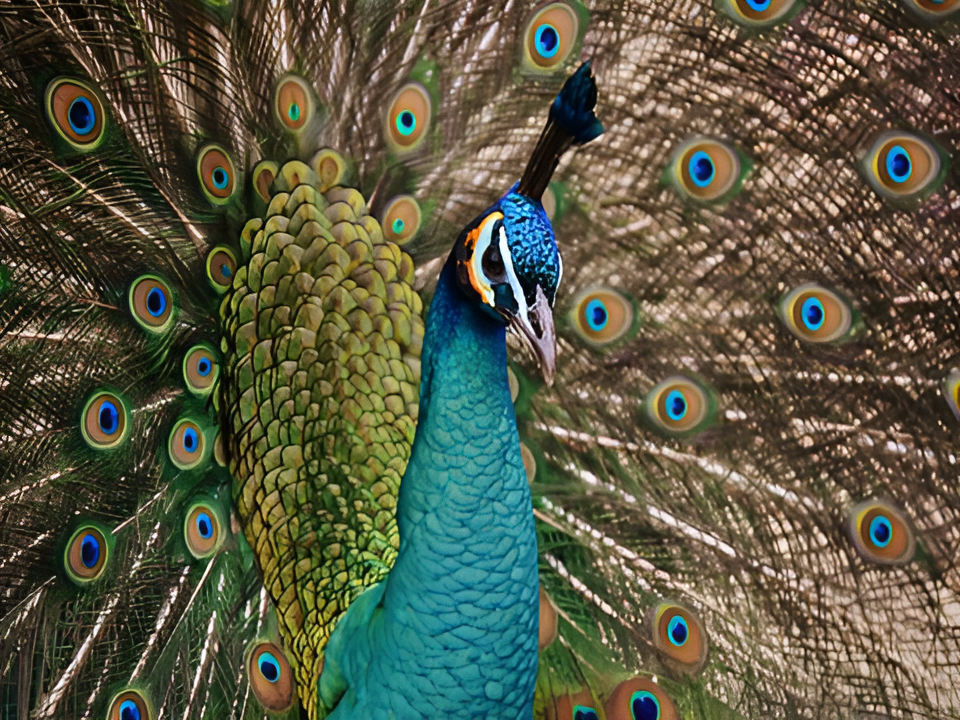
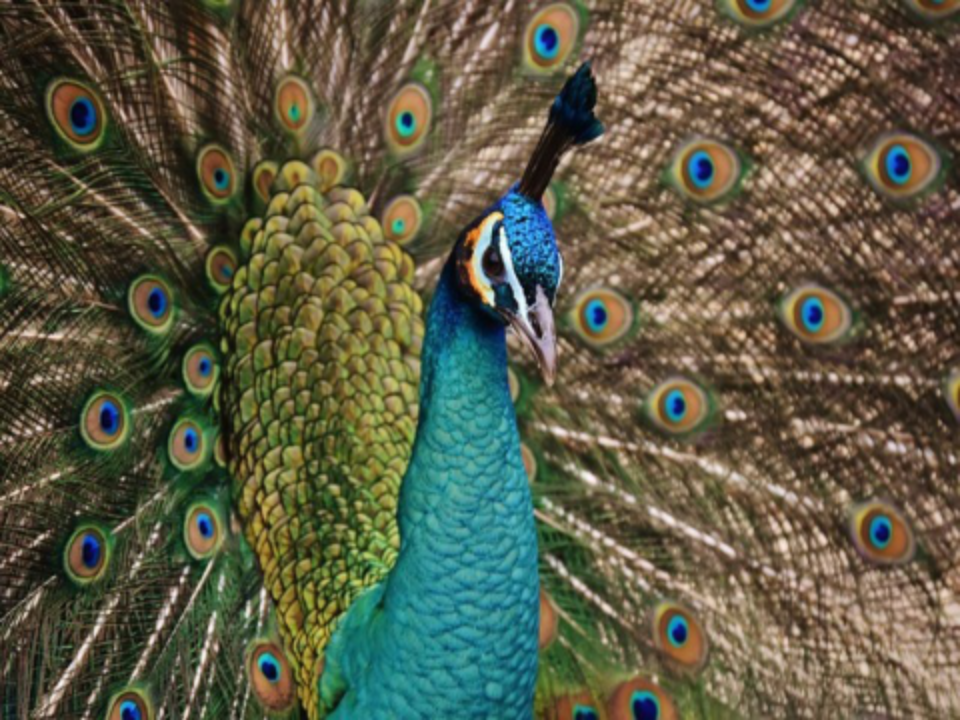
This peacock photo was upscaled at 2x using the AI image enlarger. The original lacked detail and appeared blurry. After processing, the feathers show crisp edges and vivid color gradients. The AI reconstructed texture information that was not present in the source file.
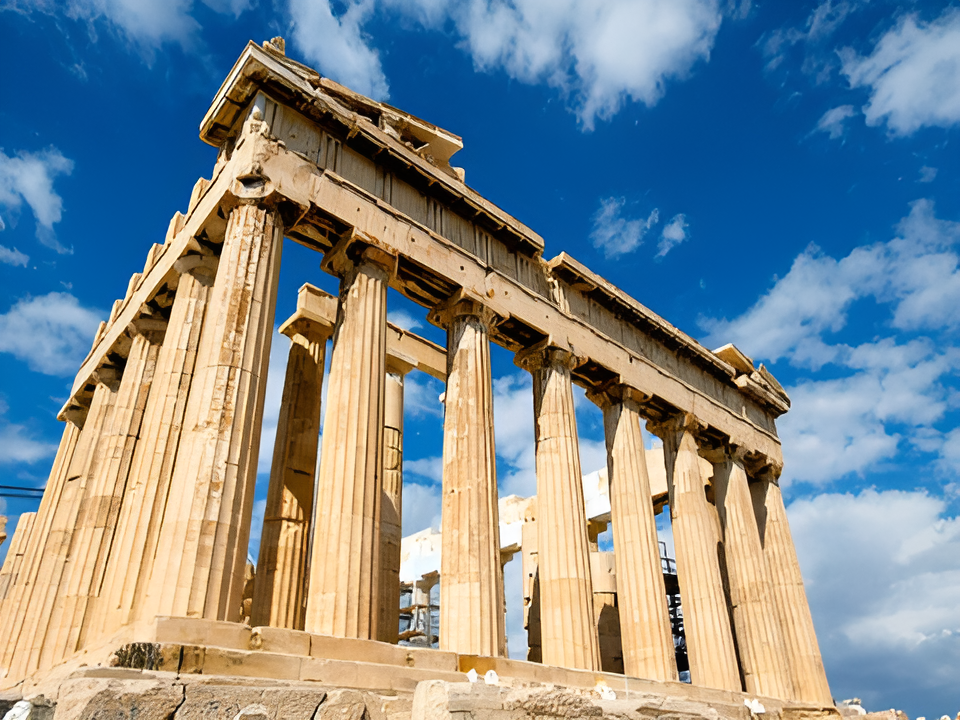
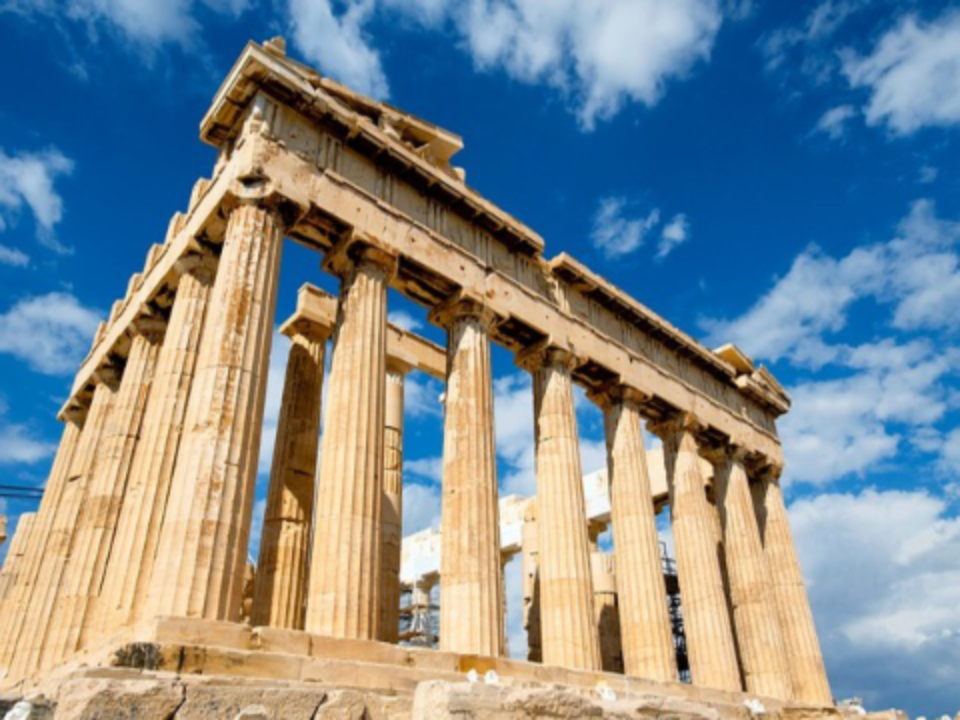
This architectural photo was transformed from a soft, undefined image into a clear and sharp result. The AI upscaler preserved the fine patterns on the temple columns and enhanced the contrast between structural elements. The image was upscaled at 2x without visible artifacts.
Traditional image resizing stretches pixels and creates a blurry result. An AI image upscaler works differently. It uses deep learning neural networks trained on millions of images to predict what the missing pixels should look like. The algorithm analyzes patterns, edges, and textures in the source image, then generates new pixel data that matches the original style.
The result is a higher-resolution image with sharp edges, natural textures, and realistic details. The AI can recover information that simple interpolation methods lose entirely. This makes AI upscaling ideal for enlarging photos, product images, artwork, and any image where quality matters.
The image upscaler accepts all common image formats including JPG, PNG, WebP, GIF, BMP, TIFF, EPS, ICO, TGA, and SVG. Upload any image file and the tool processes it automatically. The output format defaults to the original, but you can choose a different target format from the settings panel.
JPG is the best choice for photographs and images with many colors. PNG preserves transparency and works well for graphics with text or logos. WebP offers smaller file sizes than JPG at similar quality, making it ideal for web use. Each format is handled natively by the AI upscaler without manual configuration.
From photographers to online sellers, the image upscaler helps anyone who needs higher-resolution images for their projects.
Enlarge photos for prints, galleries, and client deliveries. Upscale image files from older cameras to meet modern resolution standards.
Increase image resolution for product photos on Amazon, eBay, and Shopify. Higher-resolution product images lead to better conversion rates.
Make images bigger for Instagram, Facebook, and Pinterest posts. Upload a small image and get a sharp, high-resolution version ready for any platform.
Upscale image files to 4K or larger for high-quality prints, banners, and posters. Avoid pixelation even at large print sizes.
Increase resolution of client-provided assets, reference images, and stock photos. Scale up source material to match your design canvas without blurring.
Restore old or scanned photos by increasing image resolution. The AI enhances faded details and reduces noise from low-quality scans.
The image upscaler runs entirely online. There is no software to install and no account required for free use. Upload your image, choose a scaling method, and download the upscaled result. The entire process takes seconds.
Your files are processed on GDPR-compliant servers located in Europe. The tool does not store your images permanently and does not share your data with third parties.
Drag and drop a JPG, PNG, or any image file into the uploader above. You can also paste a URL or select a file from your device.
Select 2x or 4x for quick upscaling, enter custom pixel dimensions, or set a percentage. Pick an output format or keep the original.
Click Upscale and wait a few seconds for the AI to process your image. Download the high-resolution result to your device.
An AI image upscaler is an online tool that uses artificial intelligence to increase image resolution. Unlike traditional resizing, which stretches pixels and causes blur, the AI predicts missing pixel data based on patterns in the original image. The result is a larger image with sharp edges, natural textures, and realistic details.
Yes, the image upscaler offers free use with 2 conversions per 24 hours. No account is required for free processing. For more conversions and faster processing, paid plans are available starting from the Starter tier.
Upload your image, select the 4x scale factor, and click Upscale. The AI image upscaler will increase the resolution to 4 times the original dimensions. You can also enter exact pixel dimensions, for example 3840 x 2160, using the custom pixel mode.
The image upscaler accepts JPG, PNG, WebP, GIF, BMP, TIFF, EPS, ICO, TGA, and SVG files. You can save the upscaled image in the original format or convert it to a different output format. The most common choices are JPG for photographs and PNG for graphics with transparency.
Yes, the image upscaler supports batch processing. Upload multiple image files and upscale them all in one operation. Each image is processed individually by the AI, so you get high-quality results for every file. This saves time when working with large collections of photos.
Yes. The AI image upscaler can restore details in low-resolution, old, or scanned photos. It reconstructs texture information that is missing from the source file. The results are best when the original image has enough structure for the AI to analyze. Extremely low-quality or heavily compressed images may show limited improvement.
You can set output dimensions up to 12,000 pixels per side using the custom pixel mode. The scale factor mode supports 2x and 4x multiplication of the original dimensions. The percentage mode allows scaling from 101% to 400% of the original size. The actual maximum depends on your original image size and your subscription plan.
Yes, your images are processed on GDPR-compliant servers in Europe. The image upscaler does not store your files permanently and does not share your data with third parties. No account is required for free use, so no personal data is collected.
Step-by-step guide to upscale image resolution with AI. Learn how to enlarge photos without losing quality.
Read article
Learn the difference between vectorizing and upscaling. Choose the right method for your AI-generated artwork.
Read article
A complete guide to creating AI art, upscaling it to print resolution, and preparing it for high-quality prints.
Read article
Understand the differences between JPEG and PNG. Learn when to use each format for best results after upscaling.
Read article
Learn how JPEG compression reduces file size and why upscaled JPG images maintain quality when saved correctly.
Read article